Follow these simple steps to file a Confirmation Statement through Cosec:
- Log in to your Cosec account.
- Go to the Legal Entities tab.
- Navigate to the Entity Overview page for the entity for which you need to generate the CS01 form.
- Click the "Submit CS01" button on the right-hand side of the screen. This is a common action for the complete entity.
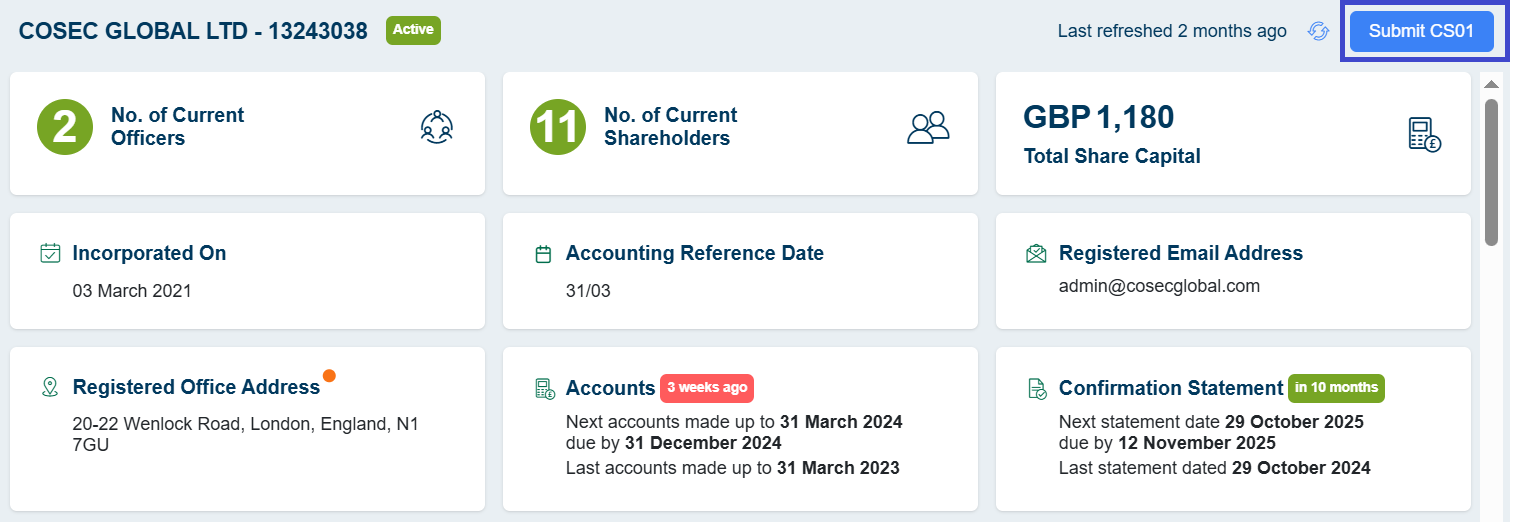
- Cosec will check whether a CS01 form has already been generated for the entity:
- If a form exists, you will be redirected to the existing CS01 form.
- If no form exists, the system will generate a new one.
- Review the entity’s information, which will be automatically updated based on the previous submission. Any tracked changes will also be reflected.
- If there are additional changes to be submitted, the system will display these changes and allow you to update the details in the form.
- Click the "Save" button to save your updates.
- Upload any required supporting documents for the CS01 and prepare them for submission. You can also send the form for signature if needed.
- Click "Pay Now" once all details have been reviewed and finalized.
- You will be redirected to the Stripe checkout page to complete the payment for submitting the CS01 to Companies House.
- After successful payment, the system will redirect you to the submission view, where you can review all submission details.
- Finally, submit the form to Companies House by clicking the "Submit" button in the CH Section.
Post-Submission
- Once submitted, Cosec will send you a confirmation.
- After Companies House accepts the form, you will receive an acknowledgment from Cosec confirming the successful submission.
What Should I do if my submission is rejected by Companies House?
