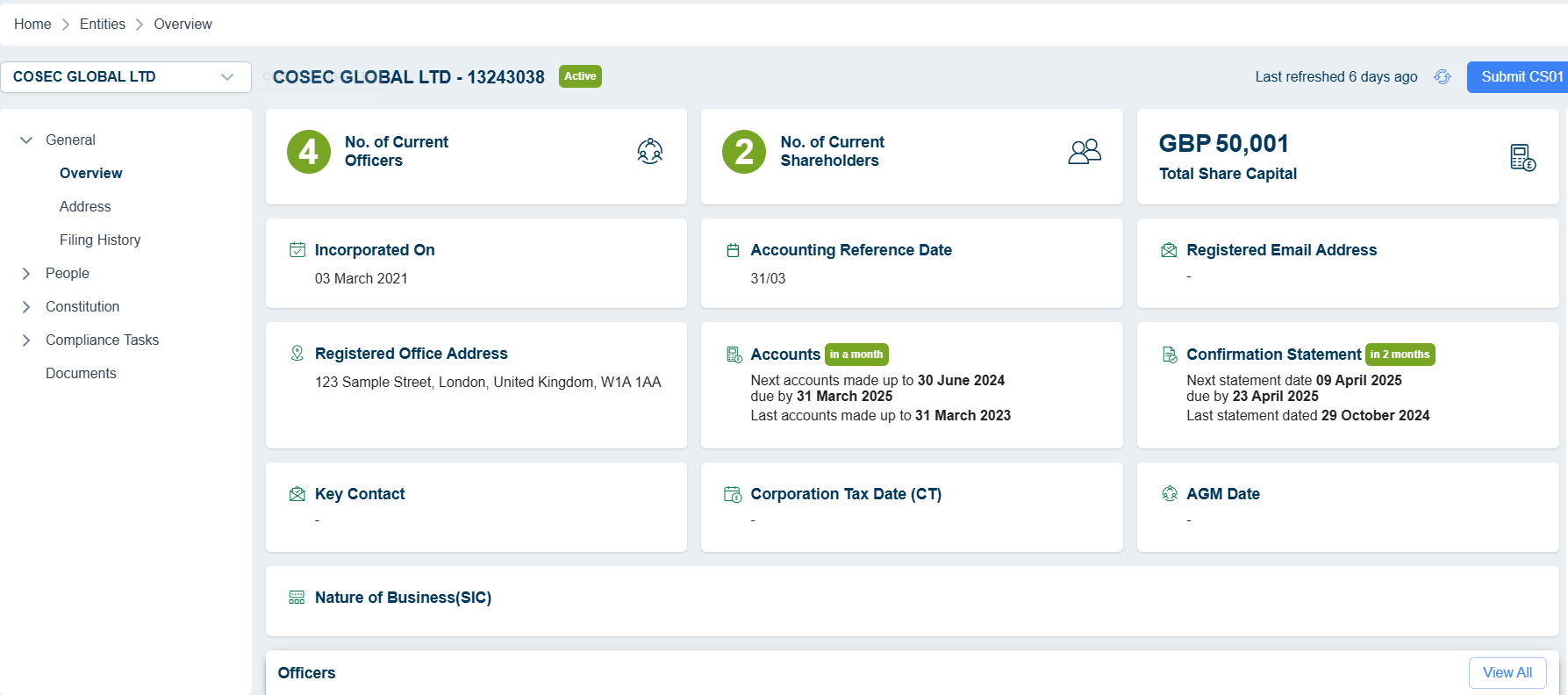
To import an entity into your organization, please follow these steps:
- Access the CoSec App platform by using your login credentials at Login | CoSec App - Company Secretarial Services.
- Go to the Legal Entities tab located on the left-hand side of the screen.
- Click on the "Import entity" button found on the legal entities screen. Please note that this button will only be visible if you have the necessary permissions within your organization.
- Utilize the Companies House Directory to search for the entity by its name or number. The system will display matching entities, from which you can select the one you wish to import.
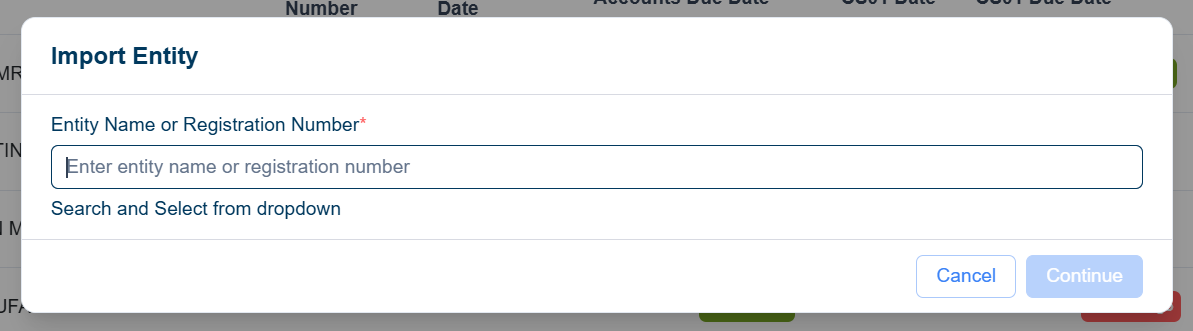
- CoSec App will verify whether the entity already exists within your organization. If it does, the system will not permit the import and will show an alert message.
- Once the entity has been verified, click on "Continue" to review the entity's details directly from the Companies House live data.
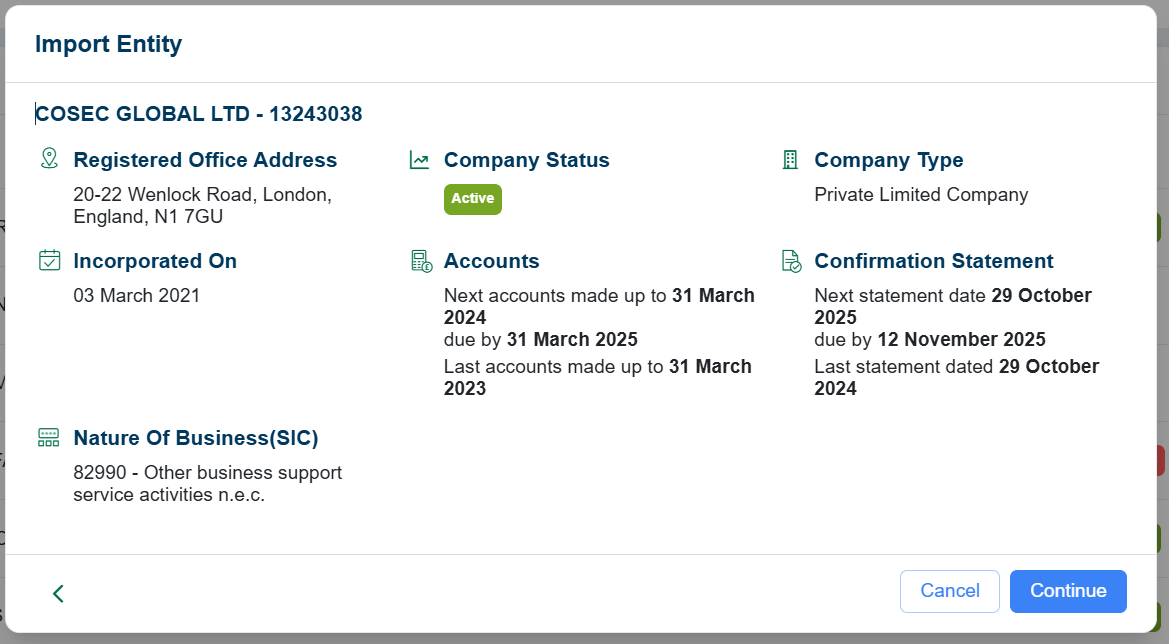
- Proceed with the import procedure by clicking the "Continue" button and providing your authentication code. It is crucial to ensure that the correct authentication code is provided for a successful import in your organization.
- In case you are uncertain about the authentication code or prefer not to import the entity at the moment, you can save it in draft mode.
Note: After the entity has been successfully imported, CoSec App will send you an email to confirm the import's success.