- To appoint a director for a specific entity, follow these steps:
- 1. Go to the Entity tab where you want to make the director appointment.
- 2. Navigate to the officer's page of that entity and click the "New" button.
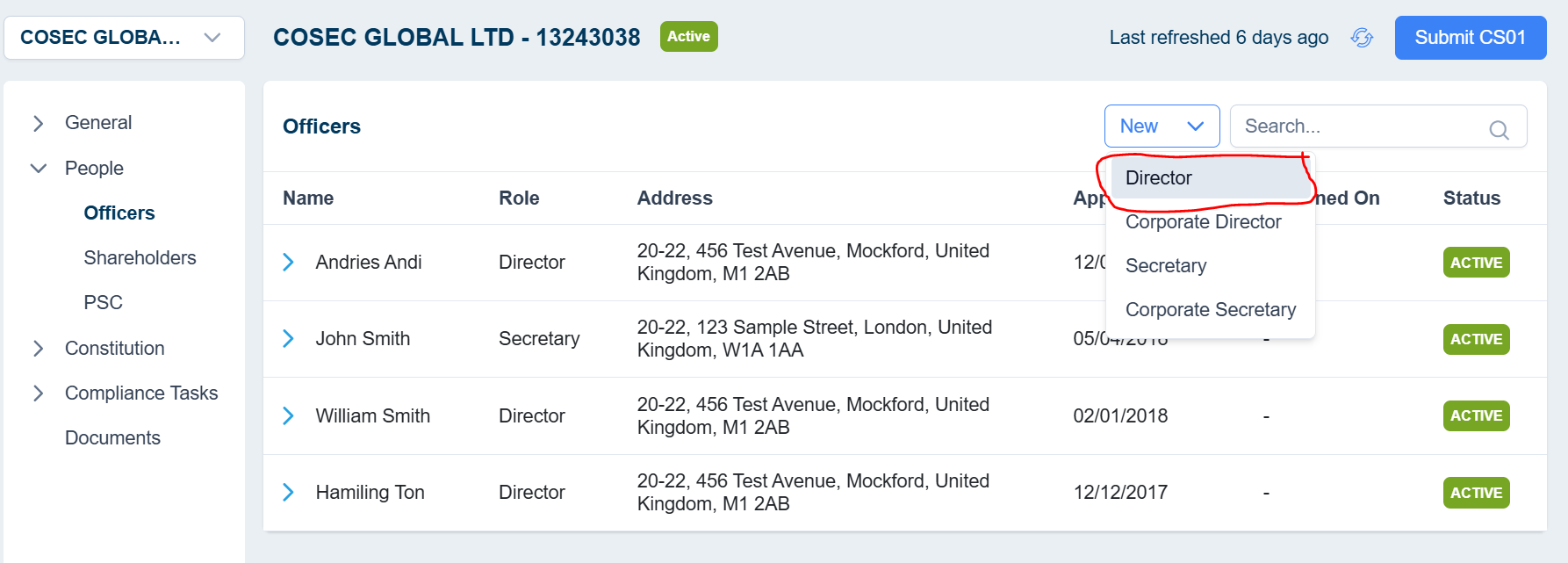
- 3. Choose the role of Director to generate the AP01 form.
- 4. If the director you wish to add is already in your contact list, select the corresponding contact. This will automatically populate details like first name, last name, date of birth, nationality, occupation, national insurance number, email, contact, and residential address. If necessary, you can overwrite these pre-filled details.
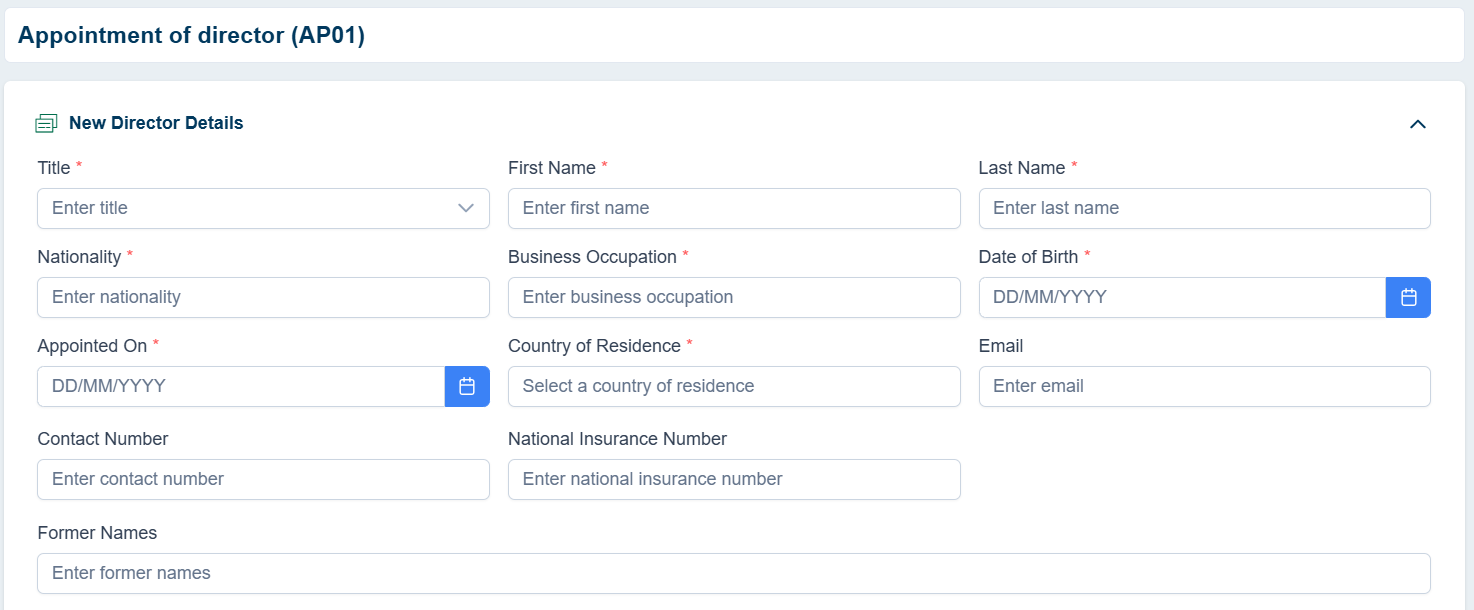
- 5. If the director has not been created yet, complete all the required fields for the director.
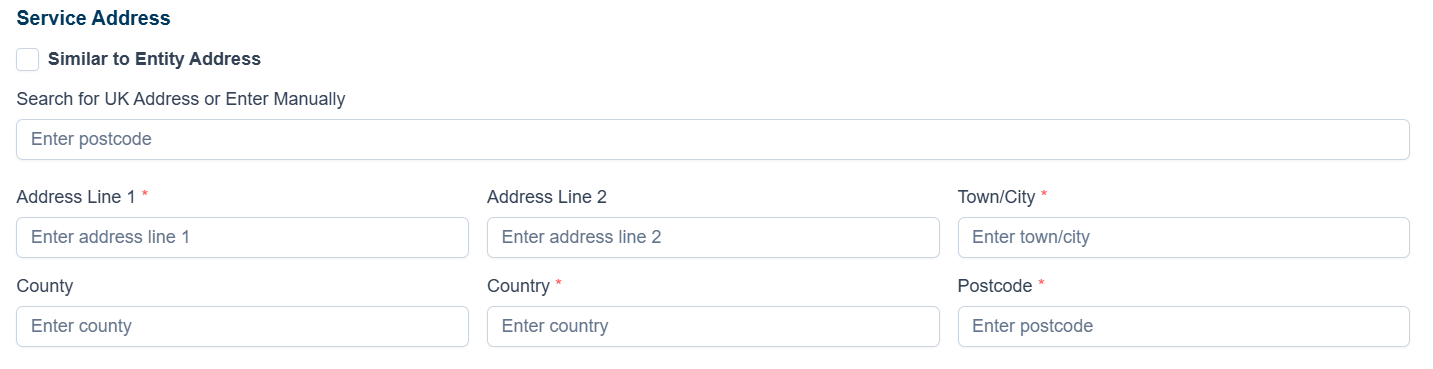
- 6. Proceed to the Service address section to record the director's principal or registered address. Utilize the postcode search for addresses within the United Kingdom.
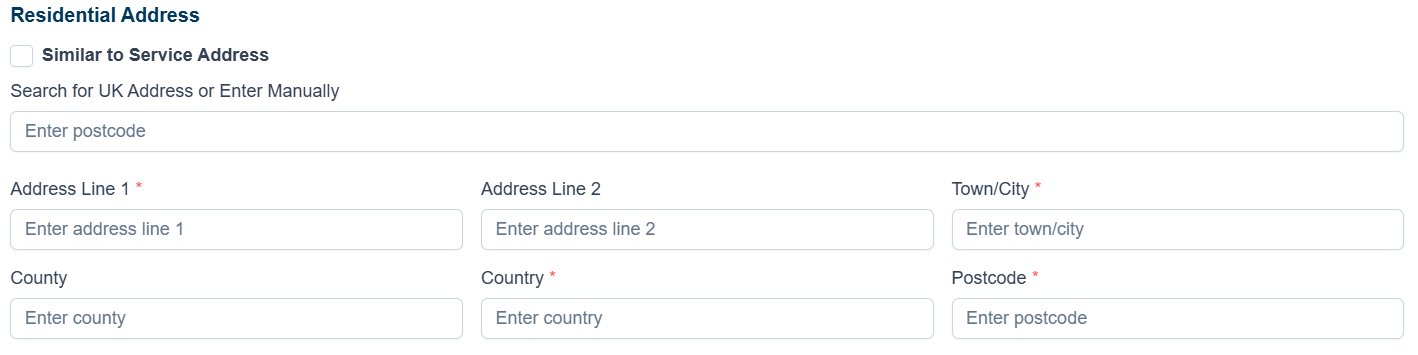
- 7. Move to the Residential address section to record the director's residential address. It can be the same as the Service address or the entity address. If you select the "No" option in section 243, the provided address will not be visible in public records.
- 8. Enable the "Consent to act" option to indicate that only Companies House has the authority to approve the submitted details for the director's appointment.
- 9. Fill in any previous names if the director has undergone name changes within the past 20 years.
- 10. Click the Save button. You will be redirected to the submission view of the AD01.
- Generating matching documents to Appoint a Director
After filling out the new address details, click on the Generate button to view a list of documents required for the AP01 form.
Select the desired documents and click Generate. You can also upload any additional required documents.
- Digital Signature (If required)
Select the signers and send the document for digital signing.
Track the document to see whether it got signed or not.
-
Internal Approval
If the form requires internal approval, set up the approval process and send it for review.
Until the form is reviewed, it is unable to be submitted for the CH.
- Post Submission
· Once submitted, Cosec will send you a confirmation.
· After Companies House accepts the form, you will receive an acknowledgment from Cosec confirming the successful submission.
How to appoint a corporate director in CoSec App?
